
Managed Voice / Call Transfer & Parking
Call Waiting
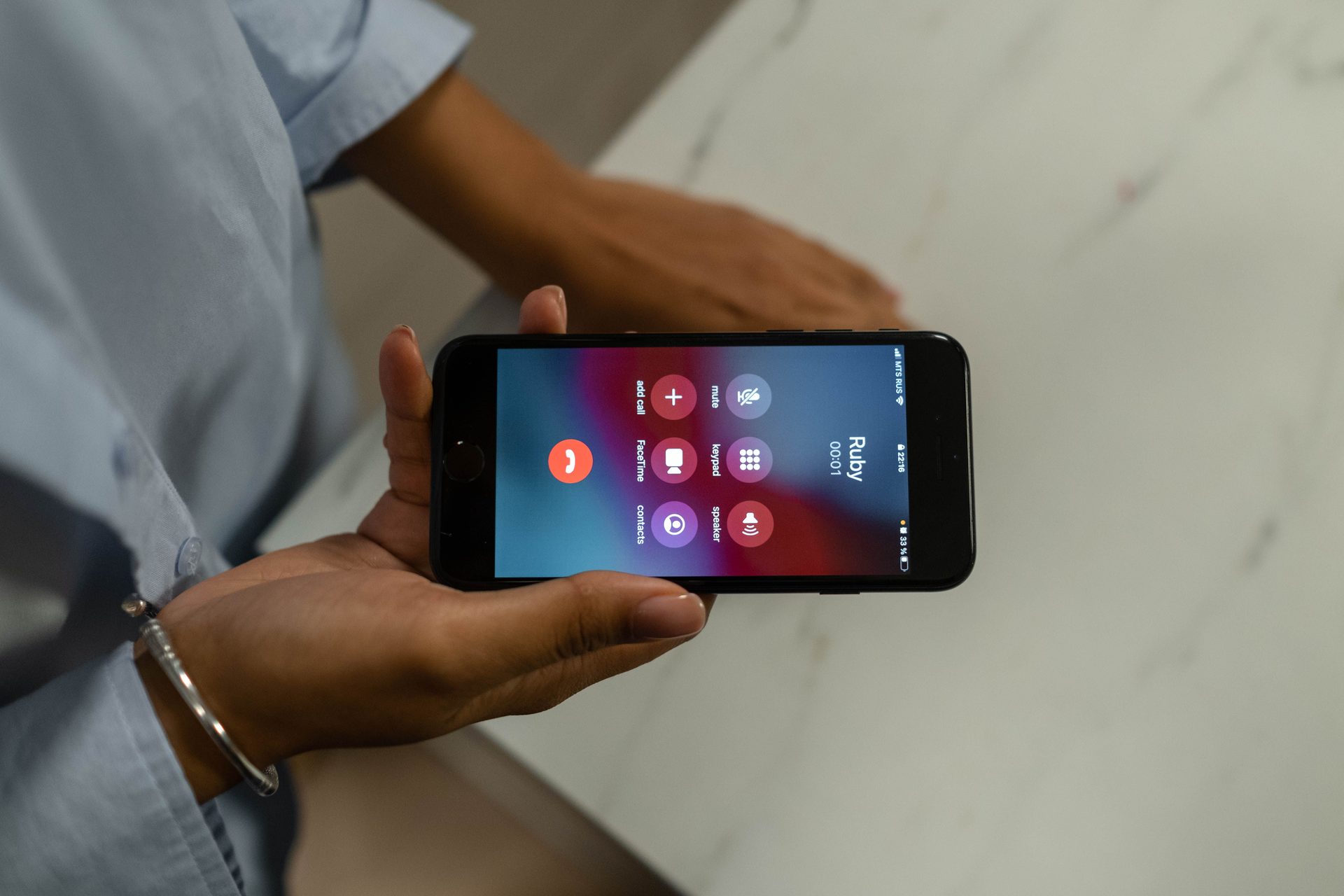
Call waiting alerts you to a second incoming call while you’re already on a line, with a tone or on-screen notice depending on your device. You can then choose to answer it, send it to voicemail, or ignore it and stay on your current call.
What are my options when a second call comes in?
You can put your current call on hold and answer the new one. Or you can decline the new call and let it follow its normal no-answer handling, like voicemail. You can also simply ignore the notification and keep talking, letting the second call proceed on its own path in the background.
Can I switch back and forth between the two calls?
Yes — once you’ve answered the second call, you can toggle between the two, placing one on hold while speaking with the other, similar to the hold step used in an Attended (Warm) Transfer.
Is call waiting on by default, or do you turn it on per extension?
It’s configurable per extension — some businesses enable it everywhere, while others disable it for roles where a single, undistracted call at a time is preferable, like a dedicated support line.
Does call waiting work the same on mobile and softphone apps as on a desk phone?
Yes. The notification and handling options stay consistent across desk phones, the desktop softphone (phone software running on a computer instead of a dedicated desk phone — see Glossary), and the mobile app. Switching devices doesn’t change how you see a second incoming call.
Can you turn off call waiting temporarily, like during an important call?
Yes. Most users can toggle call waiting off for themselves when they don’t want interruptions, without needing an administrator to change any system-wide setting.